
Chiaro Documentation
Introduction
Chiaro (formerly Lazy Lighter) creates complete, production-proven lighting rigs around a subject in one click, positioned relative to the camera. It ships with 68 rigs in six categories, from a classic three-point to neon nights and firelight, each in Area, Spot and Point versions.
Every rig is a solid starting point, carefully built and scaled to the size of the subject. From there, the global and per-light controls, the overrides and the Creative Randomizer open a practically endless range of variations. Because every variation starts from a tested rig, the result is almost always-ish a good one. Any look can be saved as a preset and used again on any subject.
Some rigs are animated by design: flames flicker, neons fail, strobes flash and lightning strikes. And haze (smoke) can fill the air around the subject so the light itself becomes visible, with slowly drifting wisps and an amount that can be animated.
Installation
Requirements
Chiaro requires Blender 4.5 LTS or later. It is tested on Blender 5.2 LTS.
Installing the Extension
Chiaro is a Blender extension. The installation is the same on every operating system:
- Download the Chiaro ZIP file from the order page.
- Open Blender and go to Edit › Preferences › Get Extensions.
- Open the drop-down menu in the top-right corner and choose Install from Disk....
- Select the downloaded ZIP file. Chiaro is installed and enabled.
- The panel appears in the 3D Viewport sidebar (press N) under the Chiaro tab.
Alternatively, drag the ZIP file from the file browser and drop it onto Blender's window.
Coming from Lazy Lighter 2.x? Uninstall Lazy Lighter before installing Chiaro, and read Upgrading from Lazy Lighter 2.x below.
Upgrading from Lazy Lighter 2.x
Chiaro 3.0 is the next version of Lazy Lighter, under a new name. Scenes made with Lazy Lighter keep working, but a few things have to be done by hand, and some results change on purpose.
Uninstall Lazy Lighter first
Chiaro is a new extension, not an update of the old add-on, so Blender would keep both. Go to Edit › Preferences › Add-ons, find Lazy Lighter and remove it before installing Chiaro.
Presets
Chiaro keeps its presets in a new folder, inside Blender's user scripts folder:
- Windows:
%APPDATA%\Blender Foundation\Blender\{version}\scripts\presets\chiaro\ - Linux:
~/.config/blender/{version}/scripts/presets/chiaro/ - macOS:
~/Library/Application Support/Blender/{version}/scripts/presets/chiaro/
Lazy Lighter's presets are not moved automatically. To keep them, copy the .json files from the old scripts/lazy_lighter_presets/ folder to the new one, then press the refresh button next to the preset list. Once copied, the old folder can be deleted.
Presets saved with Lazy Lighter load with automatic Global Intensity and Global Light Size for the subject, keeping the balance between their lights. A warning says so until the preset is saved again with Chiaro.
Scenes made with Lazy Lighter
- Rigs made with Lazy Lighter are still recognized and controlled. Their "Lazy Lights" collection takes the new name, "Chiaro Lights", the next time a rig is created.
- Keep Aim on Subject and Re-target are not available on rigs made with Lazy Lighter. Create the rig again to use them.
- Sunlight no longer gets brighter on bigger subjects. In an old scene, the sun changes the first time Global Intensity is touched.
- Lights with a color temperature now use Blender's own temperature setting. They look the same, but show a lower wattage.
Creating the same rig again
Many fixes in 3.0 change how a rig is built, so creating an old rig again does not give exactly the old result:
- The Spot and Point versions of every rig now light the subject as brightly as the Area version. In 2.x they were about 2 stops darker, or more.
- Spot cones and sun shadows keep the angle they were designed with, on any subject.
- Subject size is measured the same way for one object or several. Compact subjects, like a cube, get their lights a little further away.
- Lights no longer end up below the floor (see Allow Lights Below Floor).
Quick Start
This guide gets a lighting rig running in under 30 seconds, with a classic three-point setup:
- Select the object to light (a character, a product...). Several objects work too.
- Make sure the scene has a camera. Every rig is positioned relative to it.
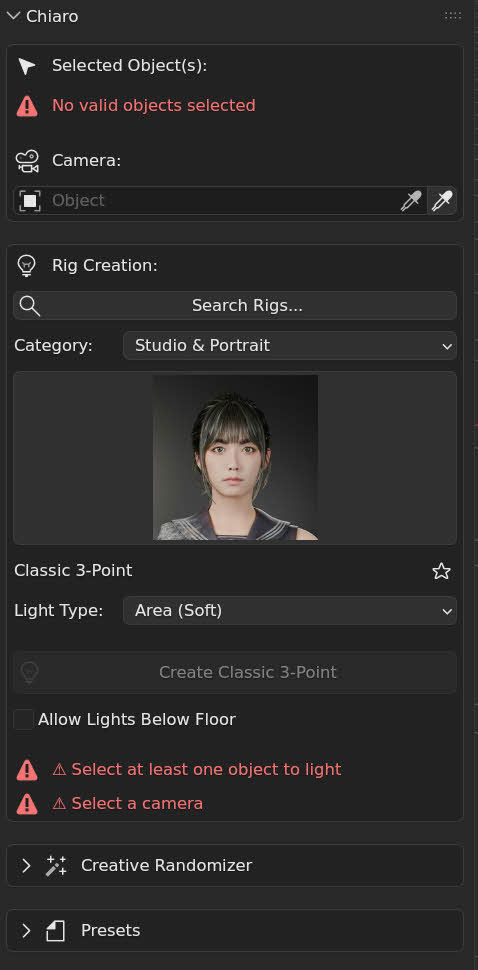
- Open the Chiaro panel: press N in the 3D Viewport and choose the Chiaro tab.
- Pick the camera in the Camera field, or click the eyedropper button next to it to use the scene's active camera.
- Choose Studio & Portrait as the Category, and Classic 3-Point in the rig selector. Or click Search Rigs... and type "3-Point".
- Click "Create Classic 3-Point".
- Adjust if needed with Distance Scale, Height Offset or Horizontal Rotation.
The object is now lit with a three-point setup: a Key Light providing the main illumination from the side, a Fill Light softening the shadows from the opposite angle, and a Rim Light separating the subject from the background. Light power and size are already scaled to the size of the subject.
Important: These rigs are professionally tuned starting points, not plug-and-play solutions. Every scene is unique. Use the controls (global intensity and size, per-light adjustments) to refine the lighting for the subject, the composition and the artistic vision. There's intentional room for artistic movement. That's where creativity comes in.
Interface Reference
The Chiaro panel is in the 3D Viewport sidebar (press N), under the Chiaro tab. This section explains each control, from top to bottom. The sections from Rig Controls down only appear when the scene has a rig.
Selected Objects and Camera
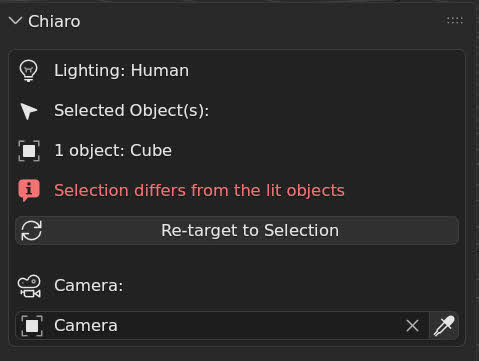
The first box shows what the next rig will light and which camera it is built for.
Selected Objects
The objects selected in the viewport are the subject. Chiaro lights meshes, surfaces, metaballs, curves, point clouds and volumes; other selected objects (cameras, lights, empties) are ignored. With several objects, the box lists their names.
Chiaro remembers the objects each rig was made for. When nothing that can be lit is selected (nothing at all, or only the rig), Create, Randomize and Load Preset light those objects again, and the box says so: "Nothing selected: using ...".
When the scene has a rig, the box shows the objects it lights (Lighting: ...). If the selection is different, it says so and offers Re-target to Selection.
Re-target
Re-target fits the current rig to other objects, or to the same objects after they were moved or scaled, without creating it again. The rig keeps its type, its settings, its colors and overrides, and its rotation.
- With other objects selected, the button reads Re-target to Selection.
- With the same objects selected, it reads Re-target.
- With nothing selected, a refresh button next to Lighting: ... fits the rig again to the objects it lights.
By default, intensities and sizes scale with the new subject, keeping their proportions. To move the lights only, turn off Scale Lights to the New Subject in the operator panel that appears in the bottom-left corner of the viewport after re-targeting.
Re-target is not available on rigs created with Lazy Lighter 2.x: create the rig again.
Camera
The camera the rig is positioned relative to. Every rig is camera-dependent: what is a three-point setup from one angle is something else entirely from another. The eyedropper button next to the field picks the scene's active camera.
Rig Creation
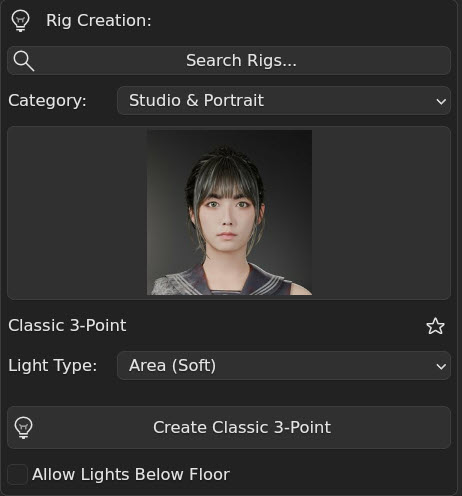
Search Rigs
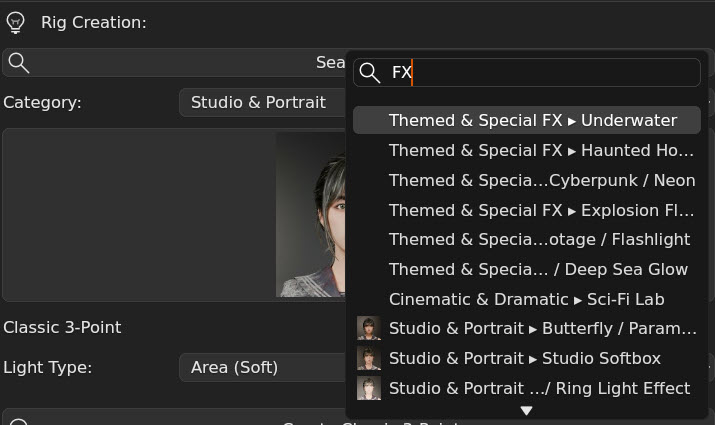
Search Rigs... opens a search field that finds a rig by its name or by its category's name, in every category. Typing "noir" finds Film Noir; typing "studio" lists every rig of Studio & Portrait. Choosing a result selects the rig and its category.
Category
The rigs are organized in six categories (see Rig Categories Guide). Two more entries gather rigs from every category:
- Animated: every rig whose lights move by design (see Animated Rigs).
- Favorites: the starred rigs.
Rig selector
The rigs of the category are shown as a grid of thumbnails. Click the thumbnail to open the grid and pick another rig. The rig's full name is shown below it, with a film reel icon on animated rigs.
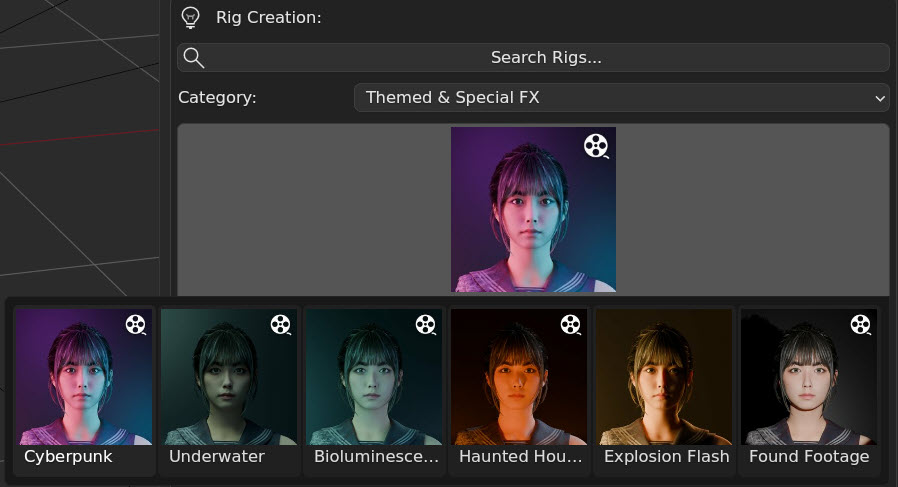
On narrow panels, the Rig Selector preference switches the grid to a plain drop-down list (see Preferences).
Favorites
The star next to the rig's name adds it to the Favorites category, or takes it out. Favorites are kept across all files: they are stored in Blender's user configuration, not in the .blend.
Light Type
The light type the rig is created with:
- Area (Soft): soft, realistic light with natural falloff. Best for most scenarios.
- Spot (Focused): a focused beam with a cone. Theatrical and spotlight effects.
- Point (Omni): light radiating in every direction. Bulbs and candles.
The three versions of every rig light the subject equally bright, so switching type changes the quality of the light, not its exposure. Some lights are designed with one type only (for example the sun of Golden Hour): they keep it whatever is chosen here.
Create button
The rig is placed at the center of the objects' bounding box, not at their origin, so an off-center origin does not matter. Light distances, power and size are scaled to the size of the subject: a cup and a car get the same look. Very small or very large subjects (below 0.2 m or above 200 m across) are scaled as if they were at that limit, and a warning suggests adjusting Global Intensity and Global Light Size.
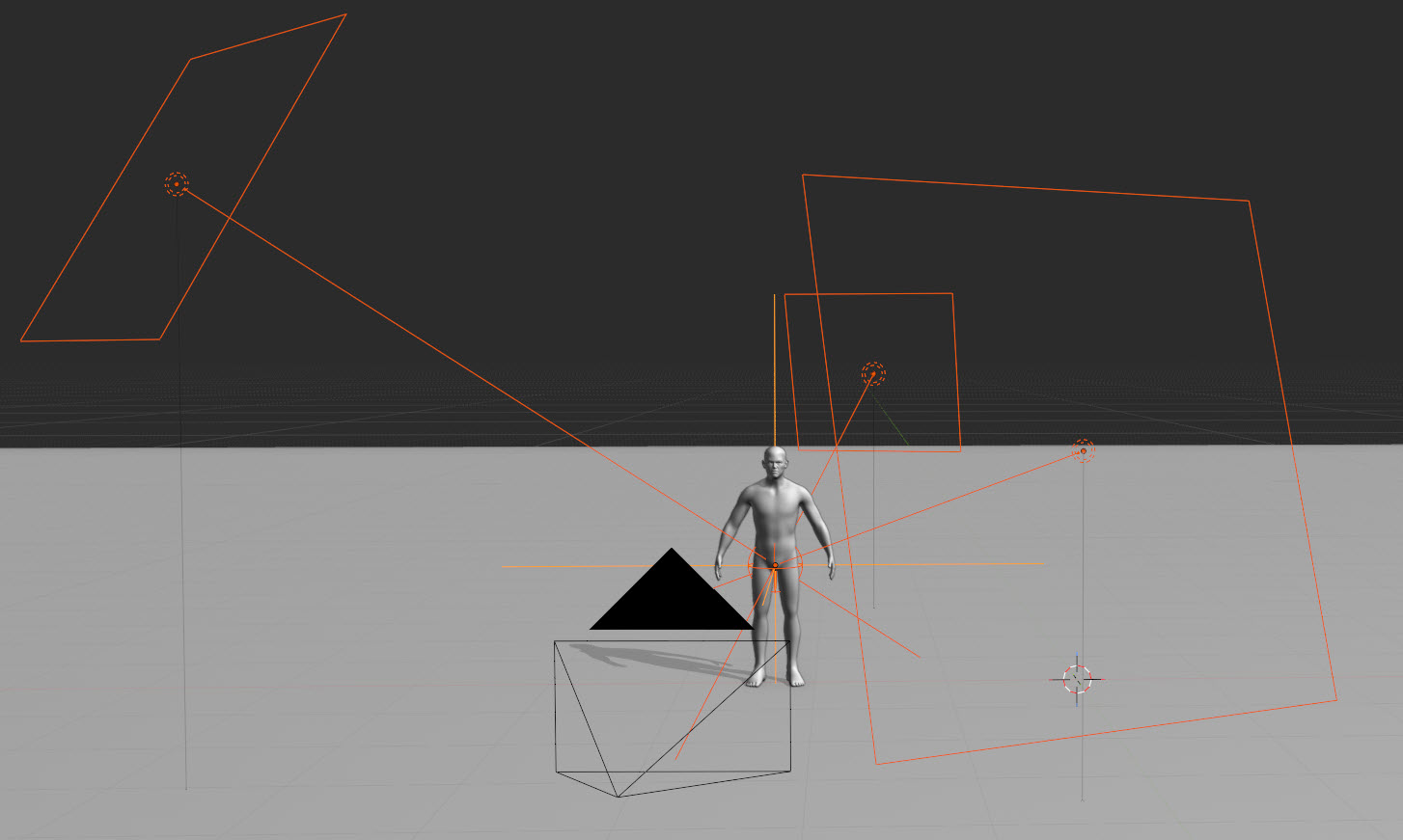
Allow Lights Below Floor
Some rigs place lights low, and on a subject standing on the floor they could end up under it. By default Chiaro moves those lights closer to the subject so they stay above the lowest point of the selected objects, keeping their angle and their brightness on the subject. Area lights keep their whole panel above it.
Check Allow Lights Below Floor to leave the lights exactly where the rig puts them, for example when the subject floats in the air. The setting also applies to the current rig.
Creative Randomizer
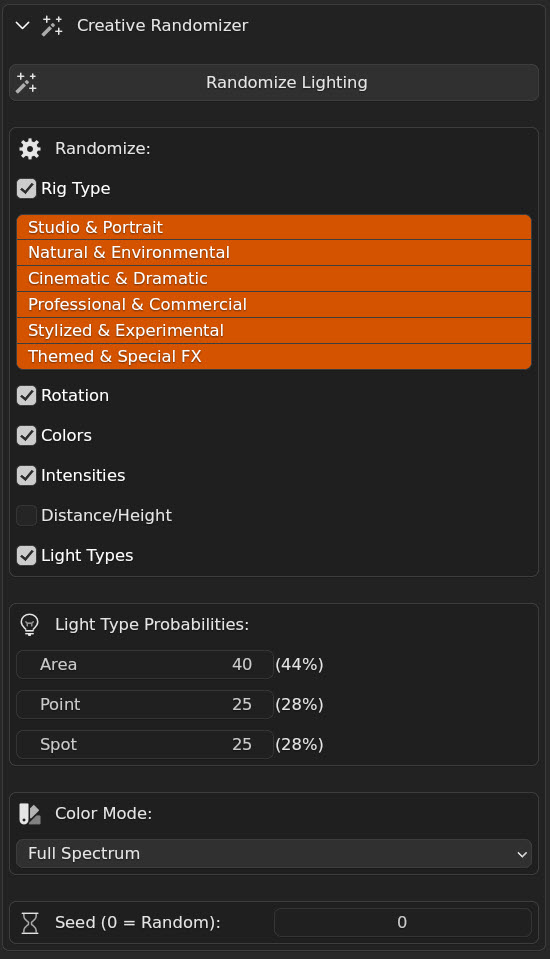
A quick way to explore. Each click of Randomize Lighting produces a new lighting setup, randomizing only the checked parameters, within limits that keep the result usable.
What it randomizes
- Rig Type: picks a new rig at random from the categories checked below it.
- Rotation: a random horizontal rotation (0-360°).
- Colors: new light colors, in the chosen Color Mode: Full Spectrum, Warm Tones, Cool Tones or Neon/Saturated. Lights with a locked color keep it (see Color).
- Intensities: random intensity ratios between the lights (0.3x to 3.0x per light). Lights with an active Intensity Override keep their intensity.
- Distance/Height: a random Distance Scale (1.0 to 4.0) and a Height Offset up or down by as much as the size of the subject.
- Light Types: a random type for each light, using the weights below. Lights whose Light Type Override was set by hand keep their type, and lights designed with a single type are never changed.
With Rig Type unchecked
With Rig Type checked, every click creates a new rig. With it unchecked, the Randomizer keeps the current rig and changes only the checked parameters, leaving everything else as it is. Uncheck Rig Type once a rig looks right, to explore its colors or intensities.
Light Type weights
When Light Types is checked, a weight from 0 to 100 sets how likely each type is: Area (default 40), Point (default 25) and Spot (default 25). The weights are normalized, and the panel shows the resulting percentage next to each one. With the defaults that is 44 % Area, 28 % Point and 28 % Spot.
Each light is randomized independently: a 44 % chance of Area means each light has that chance, not that 44 % of the lights will be Area. Only the types each light was designed for are offered.
Seed
Seed (0 = Random) makes the randomization reproducible. At 0 every click is different. Any other number gives the same result every time from the same starting point; the button next to it sets the seed back to 0.
Presets
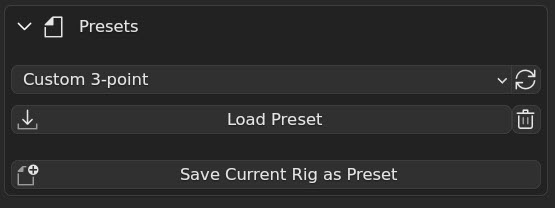
Save lighting setups and load them on any subject, in any project.
Save Current Rig as Preset
Saves the current rig: its rig type and light type, Distance Scale, Height Offset, rotation, Keep Aim on Subject and Allow Lights Below Floor, Global Intensity and Global Light Size, the animation controls, the haze, and every light's color, color lock, mute and overrides.
A dialog asks for the name. If a preset with that name already exists, it is not overwritten unless Replace is checked.
Light Only collections are not saved: they belong to the scene, not to the look.
Load Preset
Choose a preset from the list and click Load Preset. The rig is created for the selected objects (or the remembered ones), replacing the current rig. The panel shows the preset's category, rig, light type, distance and height, so Create builds the same rig again.
Presets adapt to the subject they are loaded on: Global Intensity, Global Light Size, Height Offset and light overrides keep their proportions to the subject's size, so a look saved on a person does not leave a car in the dark.
Delete Preset and refresh
Where presets are stored
Presets are JSON files in Blender's user scripts folder:
- Windows:
%APPDATA%\Blender Foundation\Blender\{version}\scripts\presets\chiaro\ - Linux:
~/.config/blender/{version}/scripts/presets/chiaro/ - macOS:
~/Library/Application Support/Blender/{version}/scripts/presets/chiaro/
Rig Controls
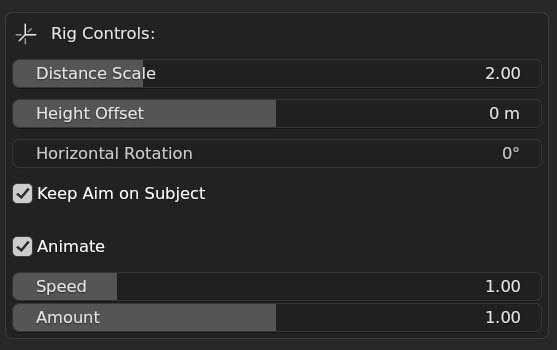
These controls move the whole rig at once.
Distance Scale
Moves every light closer to or farther from the subject, along its own direction. Default: 2.0. The slider goes from 1.0 to 5.0; values from 0.1 to 100 can be typed.
Closer lights give harder shadows and a stronger falloff across the subject; farther lights give softer, more even light. It is one of the most powerful controls for the mood of a rig.
Height Offset
Raises or lowers the whole rig, in scene units. Default: 0 m. The slider goes from -2 m to +2 m; values from -10 m to +10 m can be typed.
Negative values light from lower down (horror, drama). Positive values from higher up (natural, beauty). With Keep Aim on Subject, the lights keep pointing at the subject while the rig moves.
Horizontal Rotation
Rotates the whole rig around the subject, as if the subject turned on a turntable. Use it to reorient the lighting without moving the camera or individual lights.
Keep Aim on Subject
On by default. Every light keeps pointing at an aim sphere at the center of the subject, so changing Height Offset raises or lowers the lights without making them miss the subject.
- Move the aim sphere (named
Chiaro_..._Aimin the Outliner) to make the lights point somewhere else, for example at a face instead of the center of a full body. - Turn it off to rotate the lights by hand.
Not available on rigs created with Lazy Lighter 2.x: create the rig again to use it.
Animate, Speed and Amount
Only shown on animated rigs (see Animated Rigs).
- Animate: turns the motion on or off. Off, every light stays still at its power, which is useful for a still image or a thumbnail.
- Speed: how fast the lights move, for the whole rig. Default 1.0; the slider goes from 0.25 to 4.0, and values from 0.1 to 10 can be typed.
- Amount: how far the lights swing from their power. Default 1.0; the slider goes from 0 to 2.0, and values up to 3.0 can be typed.
Global Controls
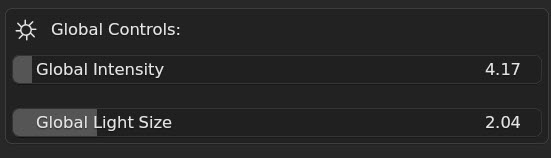
Global Intensity
Multiplies the power of every light, keeping the balance between them. When a rig is created, Chiaro sets it for the size of the subject (1.0 for a subject about one meter across), so it rarely needs a big change. The slider goes from 0.1 to 100; larger values can be typed.
Lights with an Intensity Override ignore it. Sun lights ignore it too: a sun's strength does not depend on distance, so it stays as the rig designed it.
Global Light Size
Multiplies the size of every light, for softer or harder shadows across the whole rig. Like Global Intensity, it is set for the size of the subject when the rig is created. The slider goes from 0.5 to 10.
It changes the size of Area lights and the radius of Point lights. The cone of Spot lights and the angle of Sun lights are designed per rig and are left alone; use Size Override to change them on one light. Lights with a Size Override ignore Global Light Size.
Haze
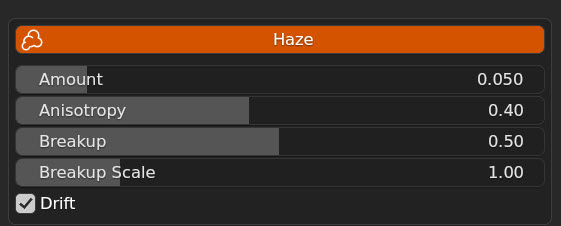
Haze fills the air around the subject, so the light of the rig becomes visible: beams from spots, glows around backlights, light falling through the air. It is a volume box around the subject, the lights and the camera, created and fitted by Chiaro. Its density fades out before its walls, so the box itself never shows.
- Haze: turns it on or off. The box is fitted again when the rig moves (Distance Scale, Height Offset, Re-target). If the camera moves far away, turn Haze off and on to fit the box around its new position.
- Amount: how thick the haze is. Default 0.05; the slider goes from 0.01 to 0.3. It follows the size of the subject, so the same Amount looks the same around a person as around a cup. Amount can be animated.
- Anisotropy: how much the haze scatters light forward, from 0 to 0.9. Default 0.4. Higher values make the beams of lights behind the subject stand out when looking toward them.
- Breakup: breaks the haze into uneven wisps, from 0 (even haze) to 1. Default 0.5.
- Breakup Scale: the size of the wisps. Chiaro sizes them to the subject; this scales that size. Default 1.0.
- Drift: the wisps slowly change over time. It works without the add-on and with Python scripts disabled, so it renders on a render farm too.
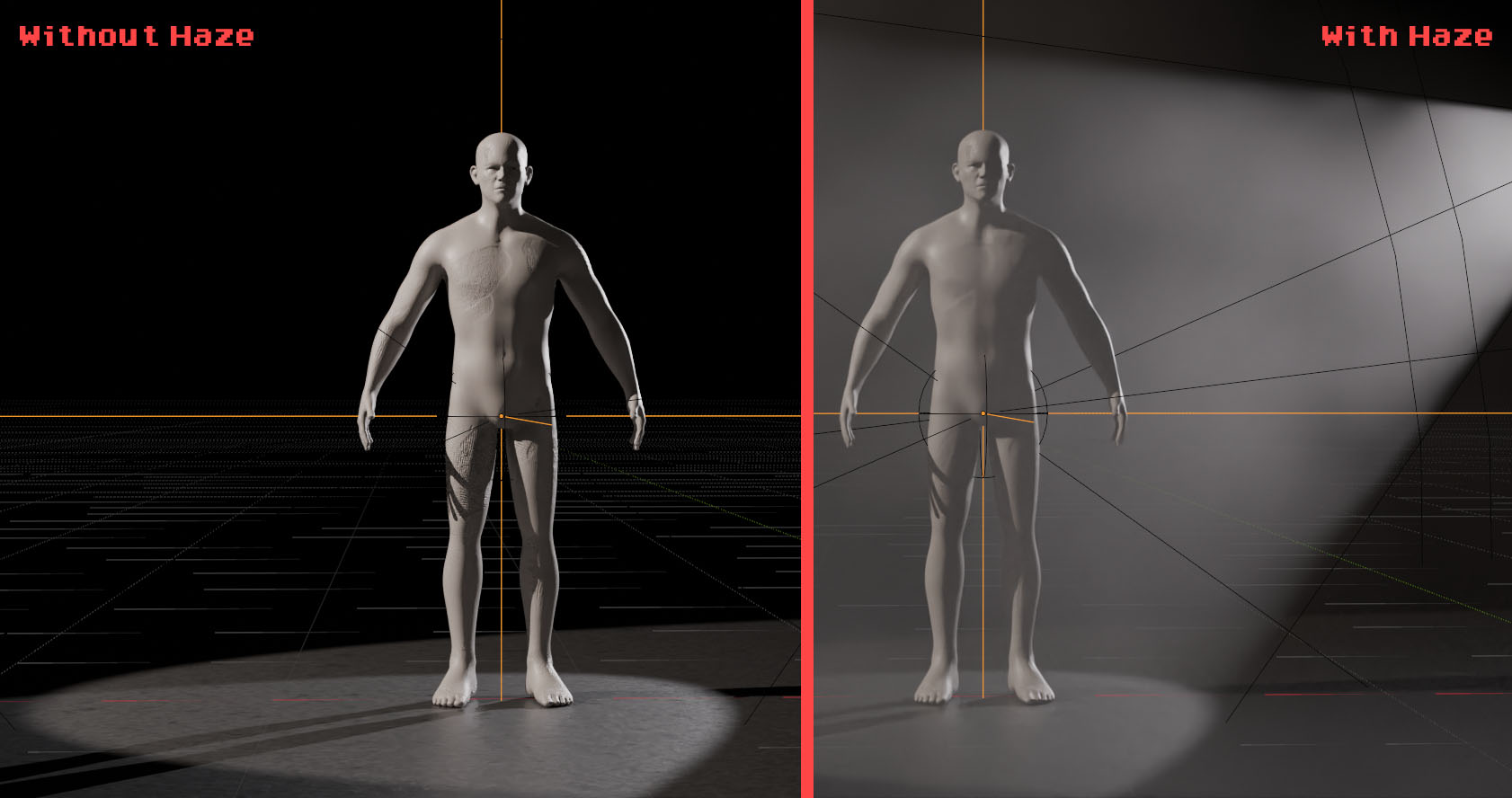
The haze box (Chiaro_Haze) is shown as a wireframe and cannot be selected in the viewport, so it does not get in the way. Delete Rig removes it; Detach Rig keeps it as a regular object (see Detach Rig and Delete Rig).
Haze is slow to render. In Cycles, a frame with haze can take many times longer than without it. In EEVEE, if the haze looks blocky or blurry, raise Render Properties › Volumes › Resolution.
With Light Only, the haze still gets the light of the rig: Chiaro adds the haze box to what the lights are allowed to light.
Light Controls
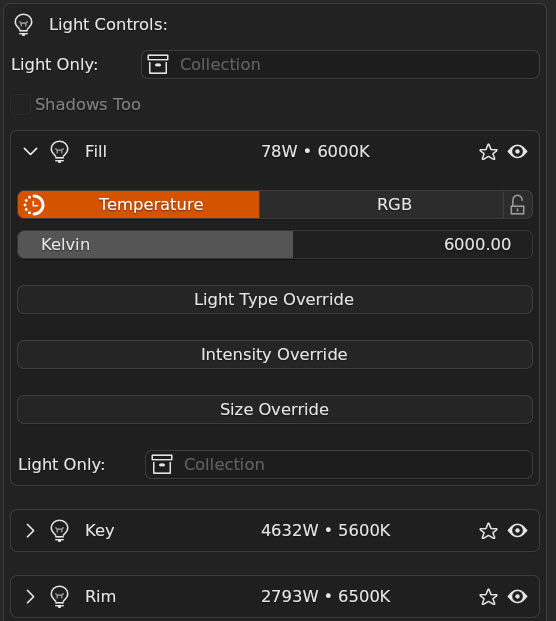
Light Only and Shadows Too
Light Only limits the rig's lights to the objects of one collection (light linking): the rest of the scene does not receive their light. Leave it empty to light the whole scene.
Shadows Too goes one step further: only the objects of the Light Only collection cast shadows from the rig's lights, so the rest of the scene does not block them. A classic use is a rim light that lights only the character and is not blocked by the set.
Each light also has its own Light Only field (see below), which takes precedence over the rig's.
Light header
Each light of the rig has a header that can be expanded. It shows:
- the light's name;
- its power (in W, or W/m² for sun lights) and its color (a temperature like 5600K, or RGB);
- a dot when an Intensity or Size Override is active;
- the Solo and Mute buttons.
Solo and Mute
- Solo shows that light alone, turning off the other lights of the rig. Click it again to turn them back on. The other lights get back exactly the visibility they had, so a muted light stays muted.
- Mute turns the light off in the render and in the viewport. It is the light's own visibility, so hiding the light in the Outliner shows here too, and the other way round. Presets remember which lights are muted.
Color
Two color modes, chosen with the Temperature and RGB buttons:
- Temperature: a color temperature in Kelvin. The slider goes from 2500K to 9000K; values from 1000K to 20000K can be typed. Chiaro uses Blender's own light temperature, so changing the temperature does not change the light's brightness.
- RGB: a full color picker for stylized and creative lighting.
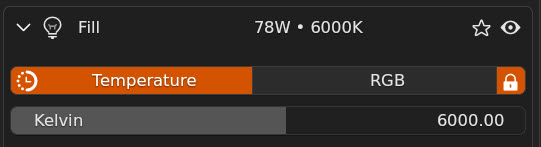
Lights designed with a color temperature start in Temperature mode, showing their value. Common values:
- 1800K-2000K: firelight, candlelight (very warm orange).
- 2700K-3200K: tungsten studio lights, household bulbs (warm).
- 5000K-5600K: daylight, neutral (the professional standard).
- 6500K-7000K: overcast sky (slightly cool).
- 7000K-8000K: moonlight (cool blue).
- 9000K and above: deep blue, sci-fi effects.
Light Type Override
Turn on Light Type Override to give this light its own type, independently of the rig's Light Type. The list only offers the types the rig designed this light for. Power and size follow the new type, so the light keeps its brightness on the subject. Turning the override off brings the light back to its original type.
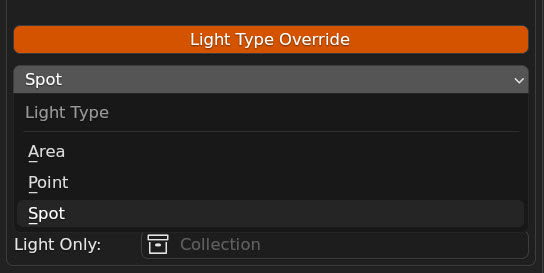
Mixing types within a rig is a creative tool: a hard Spot key with a soft Area fill, for example.
Lights designed with a single type, like the sun of Golden Hour, are locked: the panel shows "Sun light (type locked by the rig)" instead of the override.
Intensity Override
When on, this light ignores Global Intensity and uses the exact Power set here (in W, or W/m² for a sun). The override starts at the light's current power, so turning it on does not change the light.
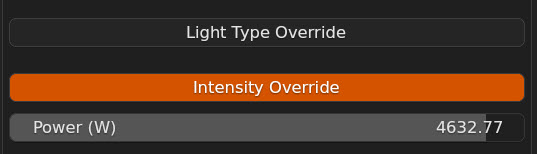
Use it for precise control over one light, for intentional imbalances, or to match a reference.
Like Blender's light power, the slider stops at zero, but a negative value can be typed: the light then takes light away instead of adding it. This behavior violates the fundamental laws of physics since it destroys light. Use it at your own risk. If you destroy the Universe, don't say later that you weren't warned.
Size Override
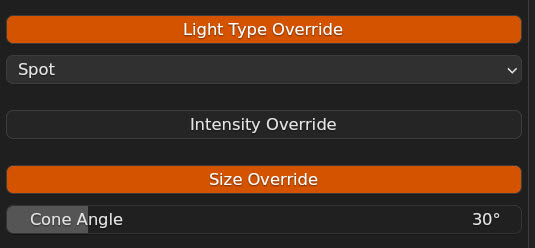
When on, this light ignores Global Light Size and uses its own size. The override starts at the light's current size. What it controls depends on the light type:
- Area: Size, the panel size.
- Point: Radius.
- Spot: Cone Angle, in degrees.
- Sun: Angle, the size of the sun as seen from the subject, in degrees.
A common use: a hard key light (small size) with a soft fill and rim (large sizes).
Light Only (per light)
The same as the rig's Light Only, for this light alone. Empty, the light follows the rig's setting.
Detach Rig and Delete Rig

Detach Rig
Detach Rig turns the current rig into regular Blender lights that Chiaro no longer controls. The lights keep where they point, their colors, power and animation. The rig empty stays as their parent, so the group can still be moved as a whole. The haze, if any, stays as a regular object, and the Haze switch turns off.
After detaching, the next rig is created next to those lights instead of replacing them. This is the way to combine two rigs, or to finish a setup by hand.
Delete Rig
Delete Rig removes the current rig: its lights, their data, the aim sphere, the haze and the rig's collection when it is left empty. Keyframes and drivers on the rig controls go with it. Other objects parented or constrained to the rig are kept in place. Delete Rig supports undo.
Creating a new rig deletes the current one the same way, so Delete Rig is mainly for cleaning up at the end.
Preferences
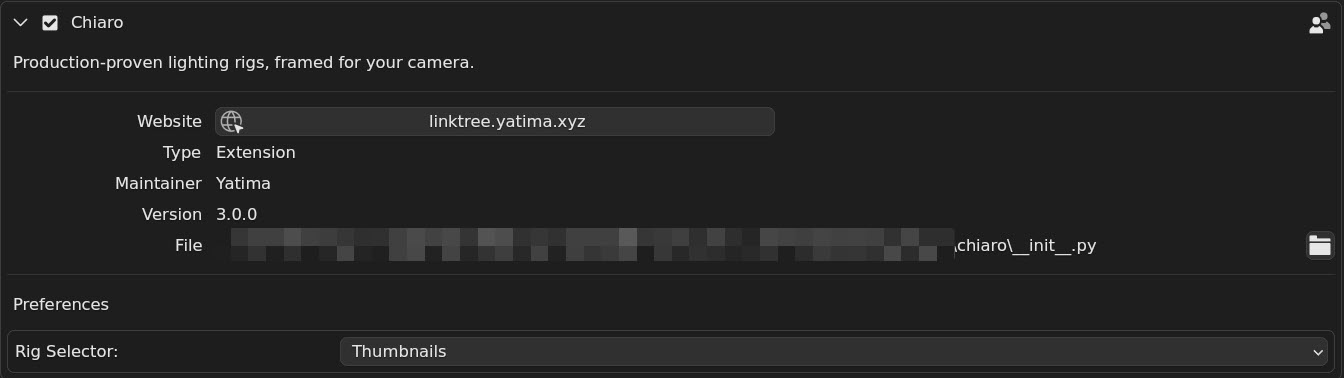
Chiaro's preferences are under Edit › Preferences › Add-ons › Chiaro.
- Rig Selector: Thumbnails (default) shows the rigs of a category as a grid of thumbnails. List shows a plain drop-down list, which fits better in narrow panels.
Animated Rigs
Some rigs are designed with lights that move: flames that flicker, glows that pulse, strobes, lightning and failing lamps. They are marked with a film reel in the rig selector, and the Animated category gathers them all.
| Motion | Rigs |
|---|---|
| Flicker (flames) | Firelight / Candlelight, Inferno / Fire Scene, Haunted House |
| Pulse (slow glow) | Bioluminescence / Deep Sea Glow |
| Pulse and shimmer (water light) | Underwater |
| Strobe | Nightclub |
| Lightning | Electric Storm |
| Fault (a lamp that fails now and then) | Cyberpunk / Neon, Blade Runner / Neo-Noir, Sodium Streetlamp, Sci-Fi Lab, Found Footage / Flashlight |
Only the lights the rig designs with motion move and the rest stay still. The motion is controlled for the whole rig with Animate, Speed and Amount in Rig Controls.
The animation is stored in the .blend file as regular Blender animation: it renders without Chiaro installed (on a render farm, for example) and stays when the rig is detached.
Rig Categories Guide
Chiaro's 68 rigs are organized in six categories. Each category represents a distinct lighting philosophy and use case. Every rig can be created with Area, Spot or Point lights.
Studio & Portrait
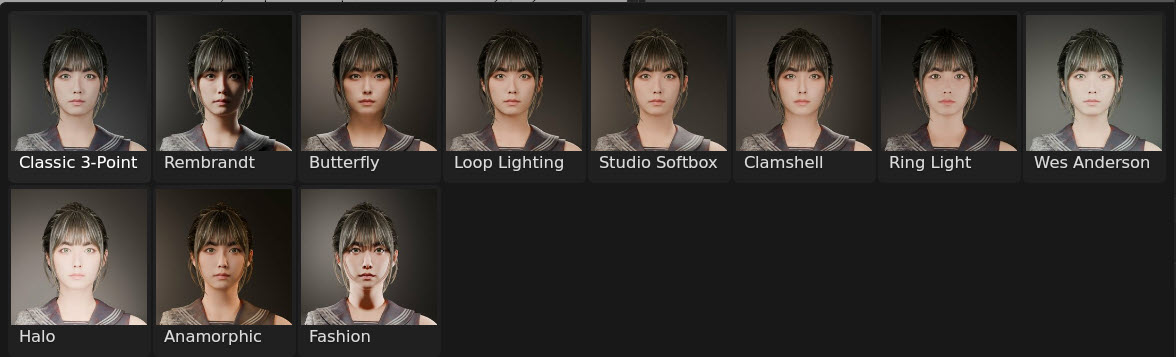
Controlled, flattering lighting for character work, beauty shots and professional portraiture. Based on techniques from fashion photography and studio cinematography.
Key characteristics: neutral color temperatures, balanced ratios, designed to minimize unflattering shadows while keeping dimensionality.
Use when: lighting characters, portraits, beauty renders, or products that need clean, professional results.
Rigs (11): Classic 3-Point, Rembrandt Portrait, Butterfly / Paramount, Loop Lighting, Studio Softbox, Clamshell Lighting, Product Ring Light, Wes Anderson / Symmetrical Pastel, Halo / Ring Light Effect, Anamorphic / Cinematic Wide, Fashion Editorial.
Natural & Environmental
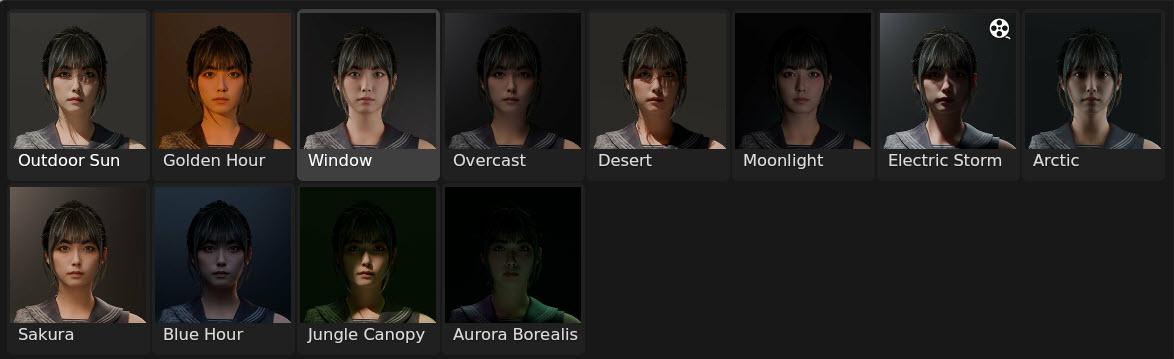
Realistic outdoor and natural lighting. Sun, sky, weather and environmental light sources.
Key characteristics: physically plausible color temperatures, strong directional sources, natural ratios between key and fill.
Use when: outdoor scenes, architectural visualization, establishing shots, day and night environments.
Rigs (12): Outdoor Sun, Golden Hour, Window / Interior Natural, Overcast / Cloudy Day, Desert / Harsh Sun, Moonlight / Night Scene, Electric Storm, Arctic / Glacial, Sakura / Cherry Blossom Spring, Blue Hour / Dawn, Jungle Canopy, Aurora Borealis.
Cinematic & Dramatic
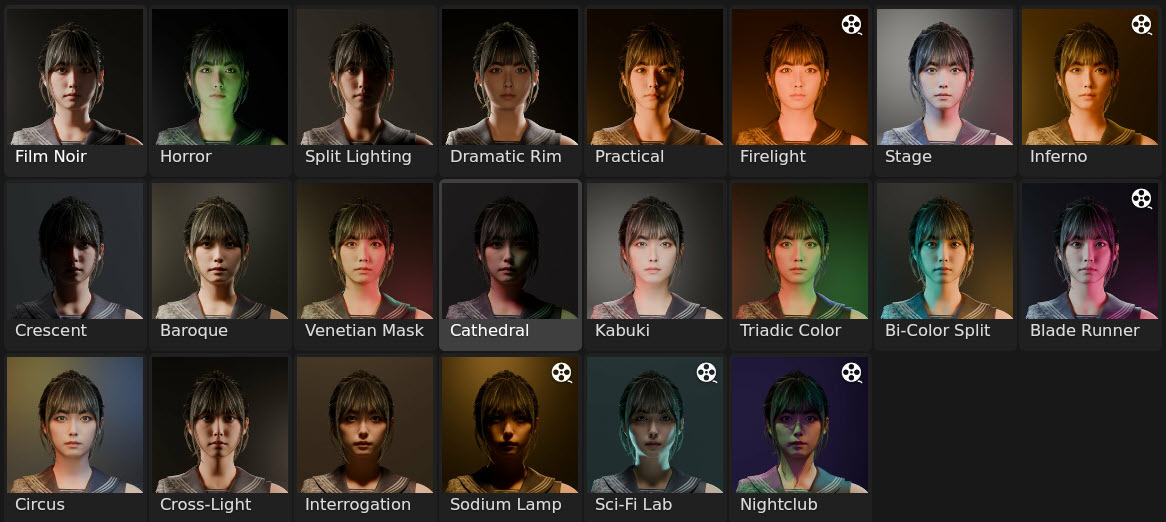
Narrative lighting with strong mood and emotional impact. Inspired by film noir, classic cinema and modern cinematography.
Key characteristics: high contrast ratios, motivated light, intentional shadows, strong directional sources.
Use when: character drama, storytelling moments, psychological scenes, building mood and atmosphere.
Rigs (22): Film Noir / Low-Key, Horror / Under Lighting, Split Lighting, Dramatic Rim / Silhouette, Practical + Ambient, Firelight / Candlelight, Stage / Concert Lighting, Inferno / Fire Scene, Crescent / Moonlit Silhouette, Baroque / Chiaroscuro, Venetian Mask / Carnival, Gothic Cathedral, Kabuki / Japanese Theatre, Triadic Color Harmony, Bi-Color Split (Teal & Orange), Blade Runner / Neo-Noir, Circus / Carnival, Cross-Light, Interrogation, Sodium Streetlamp, Sci-Fi Lab, Nightclub.
Professional & Commercial
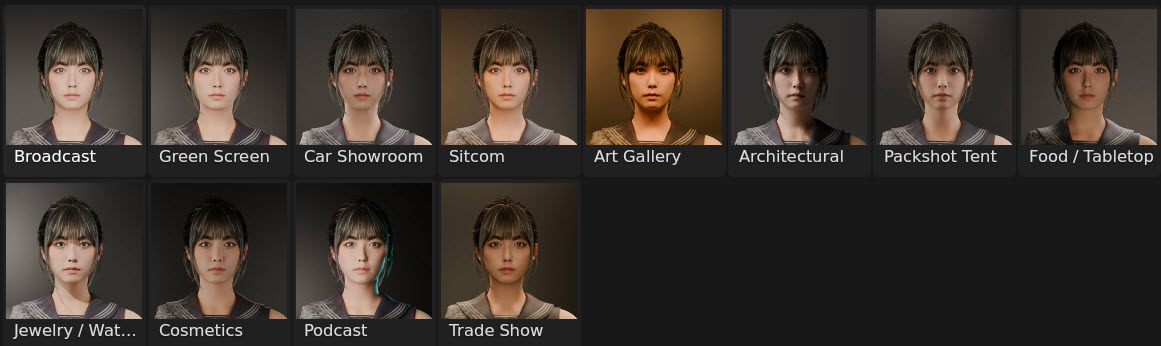
Polished lighting for product visualization, broadcast and commercial work. Designed to show subjects clearly and professionally.
Key characteristics: even illumination, controlled shadows, built for technical needs (green screen, product reflections, architectural detail).
Use when: product renders, packshots, broadcast, architectural presentations, commercial visualization.
Rigs (12): Flat / Broadcast, Green Screen, Car Showroom, Sitcom / Multi-Camera, Art Gallery / Museum, Architectural / Interior Design, Packshot Tent, Food / Tabletop, Jewelry / Watch, Cosmetics Gradient, Podcast / Streamer, Trade Show / Booth.
Stylized & Experimental
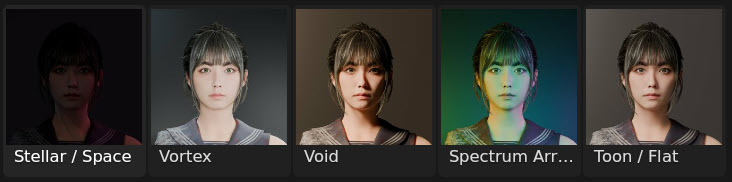
Unconventional setups that push boundaries, for artists who want to break the rules.
Key characteristics: unusual angles, unexpected colors, non-standard ratios.
Use when: creative projects, music videos, experimental art, sci-fi and fantasy scenes where realism is not the goal, toon and NPR shading.
Rigs (5): Stellar / Space, Vortex / Spiral Light, Void / Single Point, Spectrum Array, Toon / Flat.
Themed & Special FX
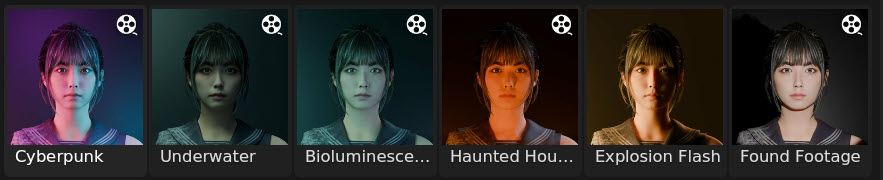
Genre-specific and effects-driven lighting, built around a specific light source.
Key characteristics: motivated by specific sources (neon, water, flashlights, explosions), often with saturated colors or extreme temperatures.
Use when: genre films, effects shots, themed scenes where a specific look is required.
Rigs (6): Cyberpunk / Neon, Underwater, Bioluminescence / Deep Sea Glow, Haunted House, Explosion Flash, Found Footage / Flashlight.
Animated and Favorites
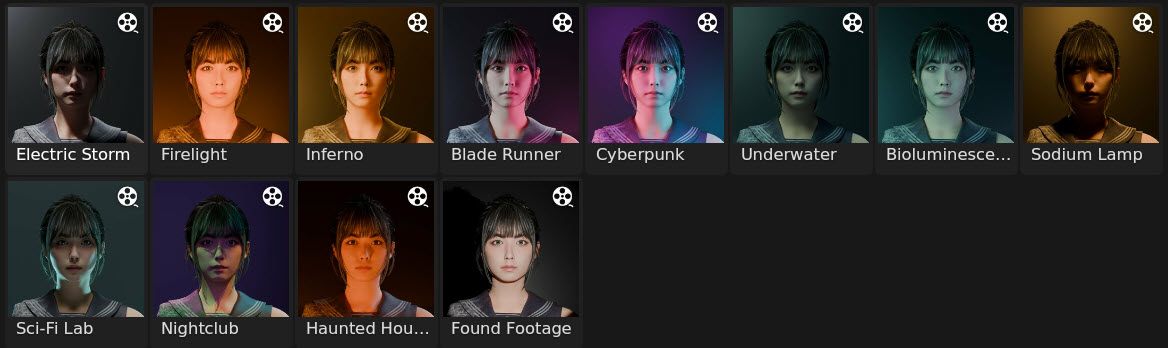
Two more entries in the Category list gather rigs from every category: Animated, with every rig whose lights move by design (see Animated Rigs), and Favorites, with the starred rigs. The Randomizer picks rigs from the six categories above.
Workflow Tips
Starting from Scratch
- Choose a category based on the scene (portrait, outdoor, cinematic...), or use Search Rigs... when the look is already clear.
- Pick a rig that matches the lighting intent.
- Create it with the default settings to see the baseline.
- Adjust Distance Scale first: it has the biggest impact on the mood.
- Fine-tune with the other controls: Height Offset, Horizontal Rotation, Global Intensity and Global Light Size.
- Refine individual lights last: colors, overrides, Solo to judge each light on its own.
- Add Haze if the light should be seen in the air.
- Save it as a preset to reuse it, and star the rigs used most often.
Working with Multiple Objects
Select every object to light, then create the rig. The rig is centered on the combined bounding box of all of them, and scaled to their combined size.
Useful for lighting several characters, product arrays or architectural elements.
Warning: Chiaro is designed to light characters, products and objects in that range of sizes. Selecting objects of very different scales together (a character and a building) gives a rig sized for the whole group, which is rarely what the character needs. On a film set nobody would light a building with a three-point setup either. Light the objects that matter, and use Light Only to keep the rest out of the rig's light.
Camera-Relative Positioning
Every rig is positioned relative to the camera. This means:
- The same rig looks different from different camera angles.
- After moving the camera, create the rig again to rebuild it for the new angle.
- After moving or scaling the subject, use Re-target: the rig follows the subject and keeps all its settings.
This is intentional and matches professional practice: in film production, every camera setup is lit again.
Rig Positioning and Bounding Box Center
Chiaro places rigs at the geometric center of the subject's bounding box, not at the object's origin point. Lighting stays consistent regardless of where the origin was placed during modeling.
Why the bounding box center?
- Consistency: objects with off-center origins still get centered lighting.
- Predictability: the rig is built around the actual geometry.
- Multi-object support: with several objects, the combined bounding box lights them as one group.
Practical examples
- Character with its origin at the feet: the rig centers on the body, not on the ground.
- Imported model with an offset origin: the rig ignores the offset.
- Several objects selected: the rig centers on all of them together.
Note: object origins don't need fixing before creating a rig.
Understanding Override Controls
Global controls = speed. Adjust the whole rig at once for fast iteration.
Override controls = precision. Set exact values on one light when full control is needed.
When an override is on, that light ignores the matching global control. This allows, for example, a very bright key light (Intensity Override) while dimming every other light with Global Intensity.
Cycles vs EEVEE
Chiaro works in both render engines, but there are practical differences:
Cycles: more physically accurate light falloff, better soft shadows, realistic color blending. Use it for final renders when quality matters.
EEVEE: real-time preview and faster iteration. Use it for setting up and experimenting.
Haze is where the two engines differ most: EEVEE renders it somewhat brighter than Cycles, and Cycles renders it much more slowly. Judge the final amount of haze in the engine used for the final render.
Tip: create and adjust rigs in EEVEE for speed, and render in Cycles for quality.
Experimentation is Encouraged!
Don't be afraid to:
- Mix light types within a rig (for example a Spot key with an Area fill).
- Use "wrong" color temperatures for creative effect.
- Mute lights to create variations (a three-point becomes a two-point by muting the rim).
- Push Distance Scale to the extremes.
- Combine presets with the Randomizer: load a preset, uncheck Rig Type, and randomize its colors.
The rigs are starting points. Artistic decisions make them unique.
Changelog
Version 3.0.0 (Current Release)
- Added: 18 new rigs, for a catalog of 68.
- Added: Animated rigs. Firelight flickers, Bioluminescence pulses, Nightclub strobes and Electric Storm strikes. Animate, Speed and Amount in Rig Controls. The animation renders without the add-on and stays after Detach.
- Added: Haze fills the air around the subject so the light of the rig shows, with Amount, Anisotropy, Breakup and Drift. Presets save it.
- Added: Rigs are chosen from a grid of thumbnails, with the rig's full name below. The Rig Selector preference switches back to a plain list.
- Added: Light Only limits the rig's lights to the objects of a collection, for the whole rig or for one light, and Shadows Too makes only those objects block them.
- Added: Each light has Solo and Mute buttons.
- Added: Re-target moves the current rig to the selected objects, or fits it again to the same objects after they move or change scale, keeping its settings and rotation.
- Added: Search Rigs, at the top of Rig Creation, finds a rig by its name or its category's name.
- Added: A star next to the rig's name keeps it in the Favorites category of the rig selector.
- Added: Keep Aim on Subject, in Rig Controls and on by default.
- Added: Detach Rig turns the current rig into regular Blender lights the add-on no longer controls, keeping where they point.
- Added: More animated rigs. Inferno and Haunted House flicker, the neons of Cyberpunk and Blade Runner, Sodium Streetlamp, Sci-Fi Lab and the Found Footage flashlight fail now and then, and Underwater shimmers.
- Added: An Animated category in the rig selector with every animated rig, and an icon that marks them.
- Added: New rigs: Fashion Editorial, Blue Hour / Dawn, Jungle Canopy and Aurora Borealis.
- Added: New rigs: Sodium Streetlamp, Sci-Fi Lab, Nightclub, Packshot Tent, Food / Tabletop, Jewelry / Watch and Cosmetics Gradient.
- Added: New rigs: Podcast / Streamer, Trade Show / Booth, Spectrum Array, Toon / Flat, Haunted House, Explosion Flash and Found Footage / Flashlight.
- Added: Type a negative Intensity Override and the light takes light away instead of adding it. Like Blender's light power, the slider stops at zero.
- Added: Create, Randomize and Load Preset remember the objects the last rig was made for. With nothing to light in the selection (nothing selected, or only the rig), they light those objects again.
- Added: The panel shows which objects the current rig lights, and says when the selection is different.
- Added: The Randomizer's Rig Type can pick from a chosen set of categories.
- Added: A lock next to each light's color keeps it when randomizing colors. Presets remember it.
- Added: Presets remember which lights are muted.
- Added: A warning when a subject is too small or too large for the automatic intensity and size.
- Added: A refresh button next to the preset list, for presets copied to the presets folder outside Blender.
- Changed: Lazy Lighter is now Chiaro, a Blender extension.
- Changed: Minimum Blender version is now 4.5 LTS.
- Changed: New thumbnails for every rig, and a film reel marks the animated ones.
- Changed: Rigs are named Chiaro_ in the Outliner, in a "Chiaro Lights" collection. Scenes made with Lazy Lighter 2.x keep working, and their "Lazy Lights" collection takes the new name when a rig is created.
- Changed: Presets are stored in the scripts/presets/chiaro folder of the Blender user folder.
- Changed: Presets saved with earlier versions load with automatic Global Intensity and Global Light Size for the subject, keeping the balance between their lights. A warning says so until the preset is saved again.
- Changed: In scenes made with earlier versions, the sun changes the first time Global Intensity changes.
- Changed: With Rig Type unchecked, the Randomizer changes the current rig instead of creating a new one, and keeps everything that is not checked.
- Changed: The light type override and the Randomizer only offer the types each light was designed for. The Randomizer no longer has a Sun weight.
- Changed: Lights with an active Intensity Override, or a Light Type Override set by hand, keep their intensity or type when randomizing.
- Changed: Lights with a color temperature use Blender's own temperature setting. They look the same, but show lower wattage, and changing the temperature no longer changes their brightness.
- Changed: Subject size is now measured the same way for one selected object or several. Compact subjects, like a cube, get their lights a little further away.
- Changed: The practical light of the Moonlight rig is cool now, in tune with the moonlight, instead of warm.
- Fix: Animated rig controls stopped working after opening another file.
- Fix: A rig removed from its scene no longer stays active after reopening the file.
- Fix: Smoother playback when no rig controls are animated.
- Fix: Manual changes to a light are no longer overwritten when scrubbing the timeline.
- Fix: Possible errors in the panel while the add-on is loading.
- Fix: Cross-Light and Interrogation rigs got a wrong internal name, so their presets could not be loaded.
- Fix: Cross-Light and Interrogation showed a wrong tooltip in the rig selector.
- Fix: Delete Rig now also removes the rig's light data and its empty collection.
- Fix: Renamed rig lights are still controlled by the rig and removed with it.
- Fix: Objects parented to a rig, or constrained to it, are kept in place when the rig is deleted or replaced.
- Fix: Keyframes and drivers on the rig controls are removed with the rig, so a new rig, a loaded preset or the Randomizer no longer inherit them.
- Fix: Animating a rig control only updates what that control affects. Manual changes to other light settings are kept during playback.
- Fix: An animated light type override is now applied during playback.
- Fix: In files with several scenes, creating a rig no longer deletes the rig of another scene or fails to create it.
- Fix: A rig linked to several scenes is only taken out of the current scene when it is deleted or replaced.
- Fix: A preset that cannot be loaded no longer deletes the current rig.
- Fix: Presets without distance or height settings load with the default values.
- Fix: Save as Preset always saves the current rig.
- Fix: The panel no longer breaks when the rig is unlinked from the scene in the Outliner.
- Fix: On very large subjects, light intensity and size no longer get out of balance.
- Fix: Sky, ambient and fill panels in 29 rigs no longer grow too large on big subjects. They are back to the size they were designed with.
- Fix: Spot cones and sun shadows keep the angle they were designed with on any subject. Before, spots widened with the subject until every spot became a flood light.
- Fix: Sunlight no longer gets brighter on bigger subjects, so the balance between sun and fill is the designed one.
- Fix: The Spot and Point versions of every rig now light the subject as brightly as the Area version. Before, they were about 2 stops darker, or more.
- Fix: Lights designed with a color temperature now show it (for example 3200K) and start in Temperature mode, instead of RGB.
- Fix: Turning off a light's type override brings the light back to its original type.
- Fix: Turning on a light's type override no longer switches the light to Area by itself.
- Fix: Lights a rig designs with a single type, like the sun in Golden Hour, are locked: the type override and the Randomizer leave them alone.
- Fix: Changing a light's type no longer turns it into a dim light with a strange cone. Its power and size follow the new type, keeping the Randomizer's intensity and the light's overrides.
- Fix: Size Override now works on Spot, Point and Sun lights, with cone and sun angles in degrees. Turning it on no longer changes very sharp sun shadows.
- Fix: Turning on a light's Intensity Override or Size Override no longer changes the light. The override starts at the light's current power and size.
- Fix: Light heights are measured from the horizon, so a camera looking down no longer tips the rig. Rims and backlights stay above the subject, and lights meant to come from below stay below it.
- Fix: Lights no longer end up below the floor. They move closer to the subject and still light it the same. The new Allow Lights Below Floor option, under the Create button, leaves them where the rig puts them.
- Fix: Area lights near the floor keep their whole panel above it, also with a Size Override or a larger Global Light Size. Lights designed from below never end up above the subject's center.
- Fix: Changing a light's Intensity Override, Size Override or type, or animating them, no longer resets manual changes to the other lights of the rig.
- Fix: Presets adapt to the size of the subject they are loaded on. Global Intensity, Global Light Size, Height Offset and light overrides keep their proportions, so a look saved on a person no longer leaves a car in the dark.
- Fix: Loading a preset shows its category, rig, light type, distance and height in the panel, so Create builds the loaded rig and moving a slider no longer makes the lights jump.
- Fix: Cross-Light and Interrogation presets saved with earlier versions appear in the preset list and load again.
- Fix: Turning on a light's Intensity Override or Size Override after loading a preset from an earlier version no longer changes the light.
- Fix: Saving a preset with the name of an existing one no longer overwrites it silently.
- Fix: Presets whose names differ only in symbols or capitals, or are written in non-Latin characters, no longer overwrite each other.
- Fix: The preset list no longer reads every preset file each time the panel is redrawn.
- Fix: Saving a preset selects it in the list, and deleting one selects the first preset left, instead of jumping to another preset.
- Fix: The random Height Offset follows the size of the subject, so small subjects are no longer lit from far above or below.
- Fix: The Dramatic Rim / Silhouette rig no longer shows a Spanish word (Silueta :-) ) in its name.
- Fix: A light near the floor with a Size Override no longer changes its brightness and size when its type is switched and back.
Lazy Lighter (Versions 0.1 to 2.4.6)
- Fixed animate rig controls and per light color temperature via frame_change post handler.
- Fixed Global Light Size and Size Override not working after changing light types.
- Fixed minor bugs and performance issues.
- Added Light Type Randomization to Creative Randomizer with weight-based probabilities.
- Added Light Type Override control for individual lights.
- Rig positioning now uses geometric center of bounding box.
- Moved preset storage to Blender's user scripts directory.
- Fixed color temperature values in portrait and moonlight rigs
- Fixed Distance Scale. Complete rewrite for better rotation handling
- Fixed double transformation in light positioning
- Fixed critical bugs in validation and error handling
- Fixed context errors when creating rigs
- Added multi-type object support (Volume, Metaball, Point Cloud, NURBS, Curve)
- Creative Randomizer UX improvements and bug fixes.
- Fixed distance scale calculation issues.
- Added Creative Randomizer system for experimental lighting.
- Intelligent auto-scaling system based on object dimensions.
- Major UI/UX reorganization and expanded limits.
- Bug fixes for latest rigs.
- Added two more rigs (50 total rigs milestone).
- UI reorganization.
- Updated Planck/Boltzmann constants.
- Complete preset system: save, load, and delete configurations.
- Added 37 new rigs.
- Delete Rig button with undo support.
- Category-based organization (6 categories).
- Removed Global/Individual mode toggle (simplified workflow).
- Removed global light color controls (color is now rig-specific identity).
- Renamed "Light Size" to "Global Light Size" for clarity.
- Color controls now always visible when light is expanded.
- Reordered per-light controls: Color first, then Intensity/Size overrides.
- Fixed global rig controls bugs.
-
Fixed several bugs and optimized callbacks.
-
Moved rig controls to post creation settings.
-
Improved overall user interface organization.
-
Added rig height control for vertical positioning.
- Added 7 new rigs.
-
Fixed a critical bug with a circular import.
- Code refactoring and added rigs categories.
- Collapsible individual light controls for cleaner UI.
- Critical bugfixes in core functionality.
- Added per-light controls overrides.
- Replaced Tanner Helland algorithm with Planck's Law for color temperature.
- More physically accurate color temperature calculations.
- Fixed critical bugs in rigs code.
- Rigs code refactoring for better maintainability.
- Added multi-object selection support.
- Rigs can now be created for multiple objects simultaneously.
- Added Rembrandt rig.
- Reset to default values when creating a new rig.
- Added Outdoor Sun rig and global color controls.
- Added global color controls.
- Added temperature-based color and RGB color control.
- Added global light intensity slider.
- Code refactoring for multi-rig approach.
- Added Golden Hour rig.
- Architectural improvements for scalability.
- Added multi-object selection support.
- Various bugfixes and stability improvements.
- Added ability to use different light types.
- Reset to default values when creating a new rig.
- Enhanced rig creation system.
- Improved light controls.
- Enhanced lighting control capabilities.
- Improved rig management system.
- Major code refactoring.
- Improved architecture for future rig additions.
- Additional control features for fine-tuning lighting setups.
- Enhanced property system for dynamic updates.
- Enhanced user interface.
- Improved panel organization.
- Improved light positioning algorithms.
- Better camera integration.
- Enhanced distance scale calculations.
- Initial release with Classic 3-Point lighting rig.
- Camera-relative positioning and basic controls.
- Target object selection via pointer property.
- Camera reference selection for lighting angles.
Contact and Support
For technical support, bug reports or feature requests:
Reporting Bugs
Please include the following information to help diagnose issues quickly:
- Blender version.
- Chiaro version.
- Operating system.
- The rig in use.
- What was expected to happen.
- What happened instead.
- Steps to reproduce the issue.
Note: Feedback directly shapes future features and improvements!