
Xplod documentation
Xplod Documentation
Installation
Requirements
- Xplod is compatible with Blender 4.2 or newer. Tested on Blender 4.5 and Blender 5.0/5.1
Installing the Addon
The installation process is the same across all operating systems:
- Download the addon ZIP file.
- Open Blender and navigate to Edit › Preferences › Add-ons.
- Click the Install from Disk button (top-right corner in Blender 4.2+) or drag-and-drop the ZIP into the Preferences window.
- Enable the addon by checking the box next to "Xplod".
- The addon panel will appear in the 3D Viewport sidebar (press N) under the "Xplod" tab.
Quick Start
This guide gets your first exploded view running in under 30 seconds:
- Select a mesh object in the 3D Viewport.
- Press N to open the sidebar and click the Xplod tab.
- Click Apply Xplod.
- Drag the Distance slider. The mesh explodes immediately.
- Change the Mode dropdown to explore different explosion directions.
Tip: Xplod works best on meshes made of multiple disconnected islands (for example, a character model with separate limbs, or an assembly of parts). On a single-island mesh like a plain cube the geometry will not move unless "by islands" mode is disabled (default behaviour).
Interface Reference
The Xplod panel lives in the 3D Viewport sidebar (N key) under the Xplod tab.
Object Selection
The panel always stays visible. When you select a non-mesh object (such as the Influence Empty), the panel continues to show the controls for the last active mesh. This makes it easy to move the Empty and adjust sliders without re-selecting the mesh each time.
Apply Xplod
Shown when no Xplod modifier is present on the selected mesh.
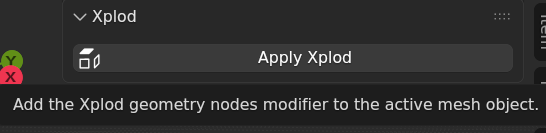
Clicking Apply Xplod adds three modifiers to the object in order:
| Modifier | Effect |
|---|---|
| Xplod Edge Split | Splits all edges so each face becomes its own island (enables per-face explosion), enabled by default. |
| Xplod Solidify | Optional thickness modifier, disabled by default. |
| Xplod | The Geometry Nodes modifier that drives the explosion. |
Mode
Dropdown that selects the explosion direction. Changing the mode automatically swaps the underlying Geometry Nodes tree while preserving the current Distance value.
| Mode | Behaviour |
|---|---|
| Spherical | Each island moves radially outward from the object's geometric center. The classic "exploded view" look. |
| Inward | Each island moves radially inward toward the center. The reverse of Spherical. Useful for implosion animations. |
| Random | Each island moves in a unique random direction. The Order and Seed sliders appear below Distance when this mode is active. |
| Single Axis | Each island moves along one global axis only (X, Y, or Z). An Axis selector appears below the Mode dropdown. |
| Axial Radial | Each island moves radially around a chosen axis i.e., outward in the plane perpendicular to that axis. An Axis selector appears below the Mode dropdown. |
Axis
Appears below Mode when Single Axis or Axial Radial is selected.
- Single Axis: islands move along X, Y, or Z.
- Axial Radial: islands move in the plane perpendicular to X, Y, or Z.
Changing the axis immediately swaps the node group. The Distance value is preserved.
Distance
Slider that controls how far islands move from their original positions.
- Range: 0.0 – 10.0
- Default: 0.0 (no explosion)
- Fully animatable via keyframes.
Order (Random mode only)
Controls how much the random directions are blended toward the spherical (outward-from-center) direction.

- 0.0: fully random. Each island goes in a completely arbitrary direction.
- 1.0: fully spherical. All islands move directly away from the center, same as Spherical mode but using the Random node group.
- Values in between produce a mix of randomness and outward bias.
Seed (Random mode only)
Integer that seeds the random direction generator.
- Range: 0 – 9999
- Changing the seed produces a completely different set of random directions while preserving the same Distance and Order.
- Animating the seed creates a "shuffling" effect.
Fragmentation
Controls how the mesh is split into pieces before exploding.
By Islands (toggle button)
When By Islands is ON: the Edge Split modifier is disabled, so the mesh explodes along its natural mesh islands (disconnected geometry groups). A single UV sphere would not explode at all and a model made of separate parts would correctly separate each part.
When By Islands is OFF (default): the Edge Split modifier is enabled, splitting every edge so each individual face becomes its own island. The mesh shatters into individual polygons.
Fragmentation slider
Only visible when By Islands is OFF (Edge Split active).
Controls the angle threshold for the Edge Split modifier.
- Higher value → fewer splits → larger pieces.
- Lower value (0°) → all edges split → maximum fragmentation (individual faces).
The value of the Fragmentation slider can be somewhat unintuitive. What this slider does is control the Edge Angle parameter in the Edge Split modifier. The allowed values range from 0º to 180º, but in practice the useful range when working with Xplod is typically between 0º and 10º, with no meaningful results beyond 90º.In any case, this is a value that depends heavily on the topology of the object to which Xplod has been applied, so experimentation is recommended.
Influence Zone
An optional spherical area of effect. When enabled, only islands whose center falls within the sphere are exploded. Islands outside the sphere remain at their original position, with a smooth (or hard) transition at the boundary.

Toggle button
Clicking Influence Zone toggles the feature on and off.
- Turning on: automatically creates a helper Empty object (named
xplod_influence_) at the bounding box center of the mesh, parented to it. The Empty uses a sphere display type so it visually represents the influence area. - Turning off: removes the Empty and resets the influence state. All islands explode again.
Empty (object picker)
Selects which object is used as the center of the influence sphere. By default this is the auto-created Empty, but you can point it to any object in the scene.
Position
Displays the XYZ location of the influence Empty. Editing these values (or moving the Empty directly in the viewport) repositions the sphere in real time.
The Empty is parented to the mesh object, so it moves with the object when you transform it. You can also freely reposition it relative to the object in local space.
Radius
The radius of the influence sphere, in Blender units.
- Range: 0.0 – 10.0
- Default: 1.0
- The sphere display size of the Empty automatically syncs to this value, giving immediate visual feedback in the viewport.
- Fully animatable.
Falloff
Controls the softness of the sphere boundary.
- 0.0: hard edge. Islands are either fully exploded (inside) or completely static (outside). No gradient.
- 1.0: maximum gradient. The transition zone spans the full radius, fading smoothly from 100% effect at the center to 0% at the edge.
- Values in between set the gradient band as a fraction of the radius.
Solidify
An optional thickness modifier. Useful for giving thin surfaces (planes, shells) some depth when rendering the exploded view.

Toggle button
Clicking Solidify toggles viewport and render visibility of the Solidify modifier simultaneously. Both flags are always kept in sync.
Thickness
Visible only when Solidify is active.
Controls the extrusion thickness of the Solidify modifier, in Blender units. Default: 0.01.
Remove Xplod
Removes all three Xplod modifiers (Geometry Nodes, Edge Split, and Solidify) from the object. If an Influence Empty exists, it is also deleted automatically. Supports undo.
How It Works
Xplod uses programmatic Geometry Nodes trees. No .blend library file is needed. The node groups are created in memory the first time they are needed and stored in the current .blend file.
Island Detection
For each vertex, the addon computes the island center: the average position of all vertices that belong to the same mesh island. This is done using Accumulate Field nodes on the Island Index, which makes the computation fully GPU-friendly and animatable.
The explosion offset for each vertex is: (island_center - overall_center) × Distance for most modes, with variations per mode (axis masking, random directions, etc.).
Node Groups
One node group is created per mode and axis combination:
| Node Group | Mode |
|---|---|
| Xplod_Spherical | Spherical |
| Xplod_Inward | Inward |
| Xplod_Random | Random |
| Xplod_X / Xplod_Y / Xplod_Z | Single Axis X/Y/Z |
| Xplod_Axial_X / Xplod_Axial_Y / Xplod_Axial_Z | Axial Radial X/Y/Z |
Switching modes swaps the node group. Shared values (Distance, Influence settings) are automatically preserved across switches. Unused node groups are removed automatically.
Influence Zone Math
When Influence Zone is active, the factor for each island is computed as:
At dist = 0 (island at the empty center): factor = 1 → full explosion.
At dist = radius: factor = 0 → no movement.
When falloff = 0: hard step (the denominator is clamped to 0.0001 to avoid division by zero).
A bypass Switch node routes around the entire influence block when Use Influence is False, so there is zero overhead when the feature is disabled.
Workflow Tips
Best Results
- Use disconnected geometry. Xplod works on mesh islands. If your mesh is a single connected piece, consider using Edit Mode to separate parts (P → Separate by Loose Parts) before applying Xplod or disable By Islands to use the Edge Split modifier.
- Apply transforms first. If your object has non-uniform scale, apply transforms (Ctrl+A → All Transforms) before applying Xplod to avoid unexpected explosion directions.
- Set Distance to 0 before rendering the non-exploded state. The modifier is non-destructive. Keyframing distance from 0 to any value animates the explosion.
Animating the Explosion
All sliders in the Xplod panel are standard modifier properties and can be keyframed normally:
- Hover over the Distance slider.
- Press I to insert a keyframe, or right-click and choose Insert Keyframe.
- Move to a different frame, change the value, and insert another keyframe.
The same applies to Radius, Falloff, Order, Seed, and the Empty's location.
Using the Influence Zone for Selective Explosions
The Influence Zone is particularly useful for:
- Localized detail: keep most of the model intact while only exploding a region of interest.
- Moving wave effect: animate the Empty's position so the "active" region travels across the mesh.
Combining By Islands and Fragmentation
- For assembly-style exploded views (mechanical parts, etc.), keep By Islands ON. The natural island structure of your mesh defines the pieces.
- For a shattering effect, turn By Islands OFF and lower the Fragmentation angle toward 0°. Combine with Random mode and a Distance animation for a dramatic destruction effect.
Multiple Objects
Xplod is applied per-object. To explode multiple objects simultaneously, apply Xplod to each one individually and animate their distance properties together using a driver.
Known Limitations
Duplicating objects with Influence Zone active
Duplicating a mesh (Shift+D or Ctrl+D) while Influence Zone is enabled causes the original and the copy to share the same influence Empty. Toggling off Influence Zone on either object will delete the shared Empty, leaving the other object's Influence Zone without a reference.
Workaround: disable Influence Zone before duplicating, then re-enable it independently on each copy.
Single-island meshes produce no explosion
If the mesh is a single connected piece with no disconnected geometry, all vertices belong to one island and the island center equals the overall center, producing a zero-length direction vector. No explosion occurs regardless of Distance.
Workaround: separate the mesh into disconnected parts in Edit Mode (P → Separate by Loose Parts), or disable By Islands to explode by face.
Non-uniform scale may produce unexpected directions
If the object has unapplied scale, the explosion directions are computed in local space and may not match the visual world-space result.
Workaround: apply all transforms before applying Xplod.
Changelog
Version 1.2.3 (2026/04/01)
- Fix influence zone toggle not updating viewport until slider interaction.
- Added a driver to control the Influence Zone Empty display size.
Version 1.2.1
- Fixed influence Empty not appearing in the correct collection (it now joins the same collection as its parent mesh).
- Fixed Influence Radius visual feedback: the Empty's display size now syncs to the Radius slider in real time via the depsgraph handler.
- Fixed influence Empty not properly parented to the mesh object after creation.
Version 1.2.0
- Added By Islands toggle to the panel. Disabling it activates the Edge Split modifier so each face becomes its own explosion island. Enabling it uses natural mesh islands.
Version 1.1.2
- Fixed depsgraph filter to include NodeTree updates, restoring Influence Radius → Empty display size sync that broke after slider changes.
- Fixed crash (ReferenceError) when removing Xplod if an Influence Empty was present: the Empty reference is now read from the socket before the modifier is removed.
- Panel now stays visible when a non-mesh object (such as the Influence Empty) is active, by pinning the last active mesh object via a depsgraph handler.
Version 1.1.1
- Replaced the separate "Create Influence Empty" button with a single Influence Zone toggle operator. Toggling on auto-creates the Empty at the mesh bounding box center.Toggling off removes it.
- Influence Empty is now parented to the mesh object so it follows all object transforms.
- Fixed influence zone coordinate space: the Empty's location is now read in the mesh's local space (transform_space = RELATIVE), so the zone works correctly regardless of where the object is in world space.
Version 1.1.0
- Added Influence Zone: a spherical area of effect that limits which islands explode. Includes Radius and Falloff controls. The Influence Empty syncs its display size to the Radius slider for real-time viewport feedback.
- Reordered the panel layout: Mode/Axis → Distance → Fragmentation → Influence Zone → Solidify → Remove.
- Added Position control for the Influence Empty directly in the panel.
Version 1.1.0
- Added Solidify section to the panel with a visibility toggle and Thickness slider.
- Fixed Solidify render flag: the toggle now syncs both viewport and render visibility simultaneously.
Version 1.0.0
- Added Axial Radial mode: islands explode radially around a chosen axis (X, Y, or Z), moving in the perpendicular plane.
- Added Single Axis mode: islands move along one global axis only.
- Added Inward mode: islands implode toward the object center.
- Added Random mode with Order (randomness–spherical blend) and Seed controls.
- Added tooltips to Distance, Order, Seed, Influence Radius, and Influence Falloff sliders.
Version 0.7.0
- Mode changes now automatically swap the node group while preserving shared socket values (Distance, Influence settings).
- Unused node groups are automatically removed when no longer needed.
Version 0.5.0
- Added Fragmentation control (Edge Split modifier) for per-face explosion.
Version 0.3.0
- Node groups are now created programmatically at runtime. No .blend library required.
Version 0.1.0
- Initial release.
- Spherical explosion mode: islands move radially outward from the object center.
- Distance slider, Apply Xplod and Remove Xplod operators.
Contact and Support
For bug reports, feature requests, or general support:
support@yatima.xyz
When reporting a bug, please include:
- Your Blender version.
- Your operating system.
- Which explosion mode you were using.
- What you were trying to do and what happened instead.
- Steps to reproduce the issue.